Editing a two- or three-camera podcast by hand means hours of switching angles and trimming pauses. AI plugins for Premiere Pro now do most of that in minutes. This guide compares the best options (AutoPod, AutoCut, FireCut and Premiere’s own Text-Based Editing), shows the exact workflow with screenshots, and lists current prices so you can pick the right one.
Quick answer: For multicam video podcasts, use AutoPod ($29/month, 30-day free trial): it switches cameras automatically based on who is speaking. For an all-in-one AI toolkit (captions, zooms, shorts plus podcast editing), AutoCut‘s AI Plan is the best value. To just remove pauses and filler words, Premiere’s built-in Text-Based Editing is enough and costs nothing extra.
Best AI podcast editing plugins for Premiere Pro compared
| AutoPod | AutoCut | FireCut | Premiere Text-Based Editing | |
|---|---|---|---|---|
| Best for | Multicam video podcasts | All-in-one AI editing | AI editing suite | Pauses and filler words |
| Auto camera switching | Yes (up to 10 cams/mics) | Yes (AutoCut Podcast) | Yes (Pro plan) | No |
| Silence / jump cuts | Yes | Yes | Yes | Yes (delete pauses) |
| Filler-word removal | No | Yes | Yes (Pro) | Yes |
| Captions | No | Yes | Yes (Pro) | Yes (Premiere captions) |
| Social clips | Yes (Social Clip Creator) | Yes (AutoViral) | Yes | No |
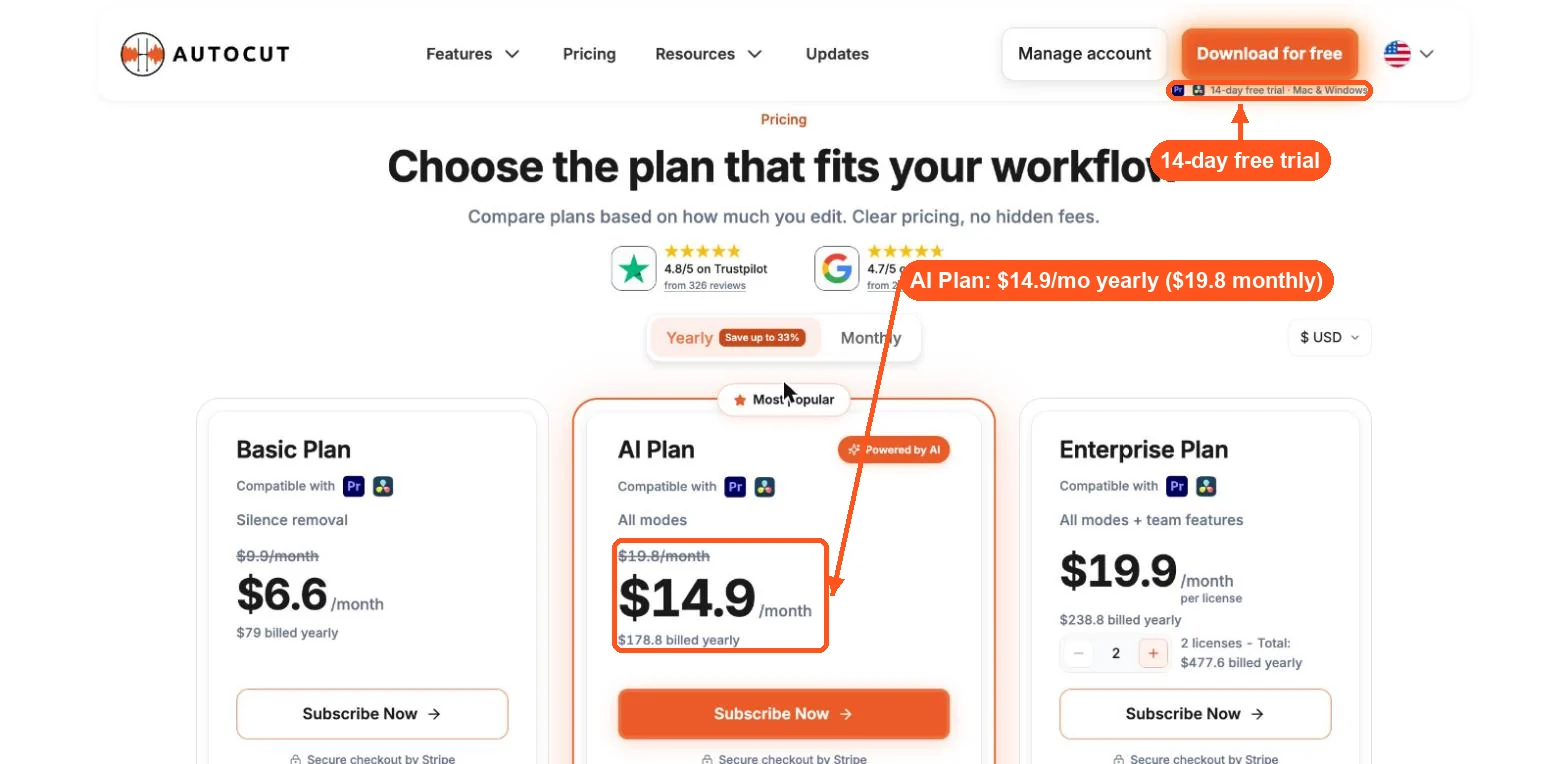
| Price | $29/month | AI Plan $19.80/mo ($14.90 yearly) | Pro $34/mo (yearly) | Included with Premiere |
| Free trial | 30 days | 14 days, no card | 7 days | 7-day Premiere trial |
| Also works in | DaVinci Resolve | DaVinci Resolve | DaVinci Resolve | Premiere only |
Prices checked 26–28 November 2026 on each tool’s pricing page. Regular prices shown, not promotions.
1. AutoPod: best for multicam video podcasts
AutoPod was built for video podcasts. Its Multi-Camera Editor reads each speaker’s audio track and cuts between solo shots, two shots and wide shots like a human editor. It also includes a Jump Cut Editor (silence removal) and a Social Clip Creator (vertical, square and landscape clips).
Workflow in Premiere Pro:
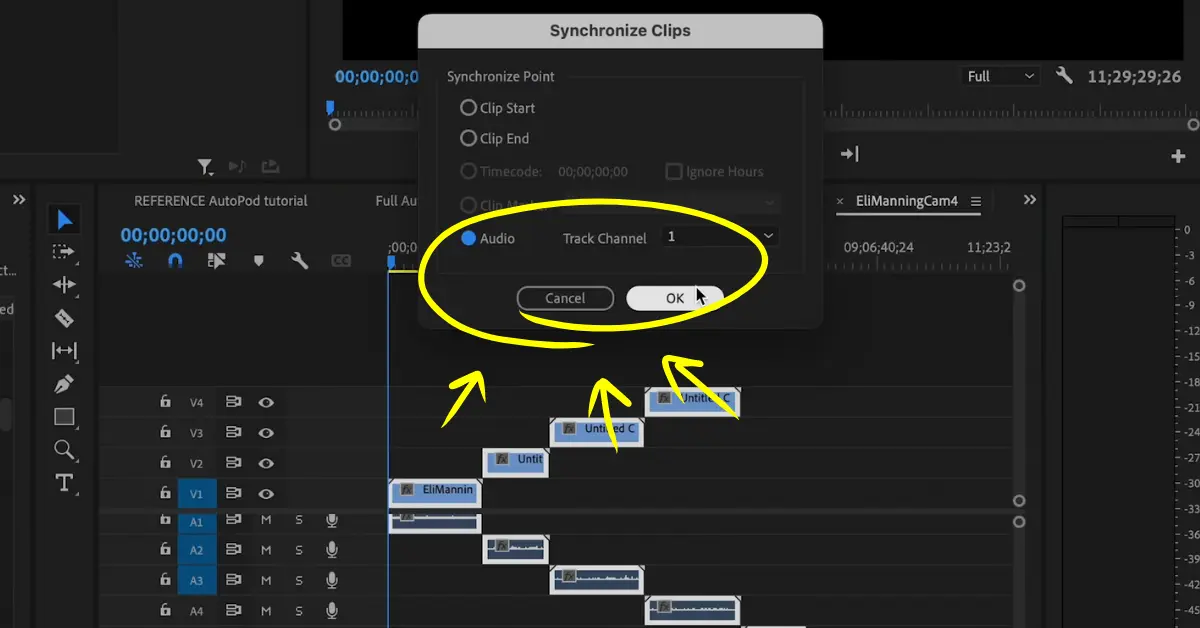
- Import every camera and each speaker’s separate microphone file, then synchronize them on audio.
- Open Window > Extensions > AutoPod Multi-Camera Editor.
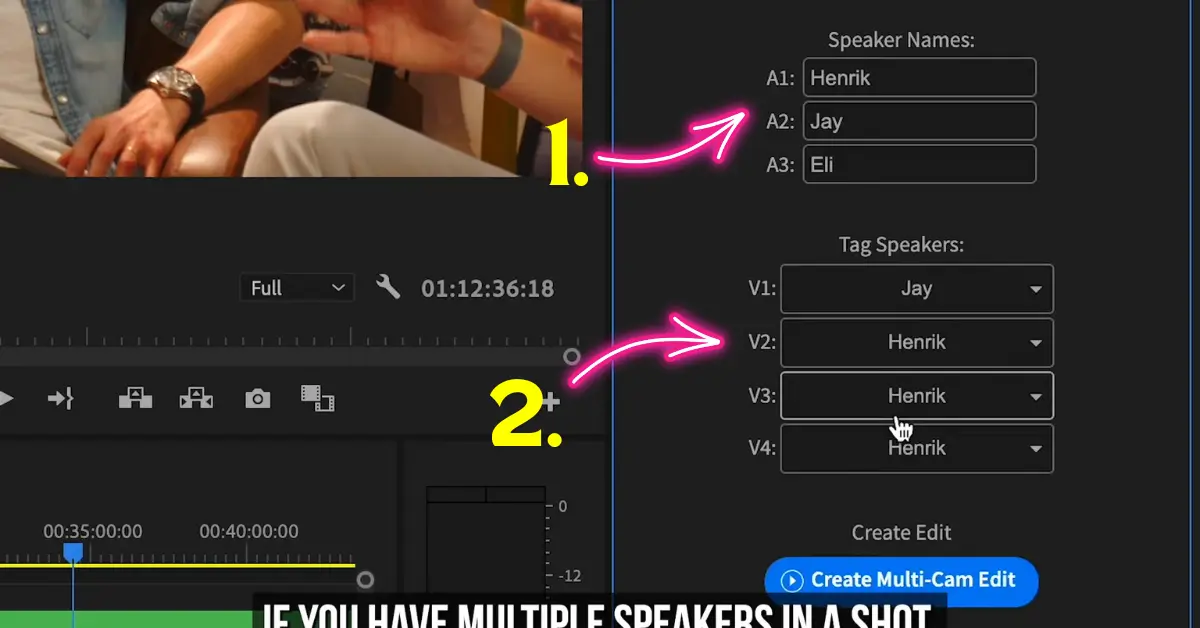
- Name each audio track (A1, A2…) under Speaker Names, and tag who appears in each video track (V1, V2…) under Tag Speakers, including wide shots.
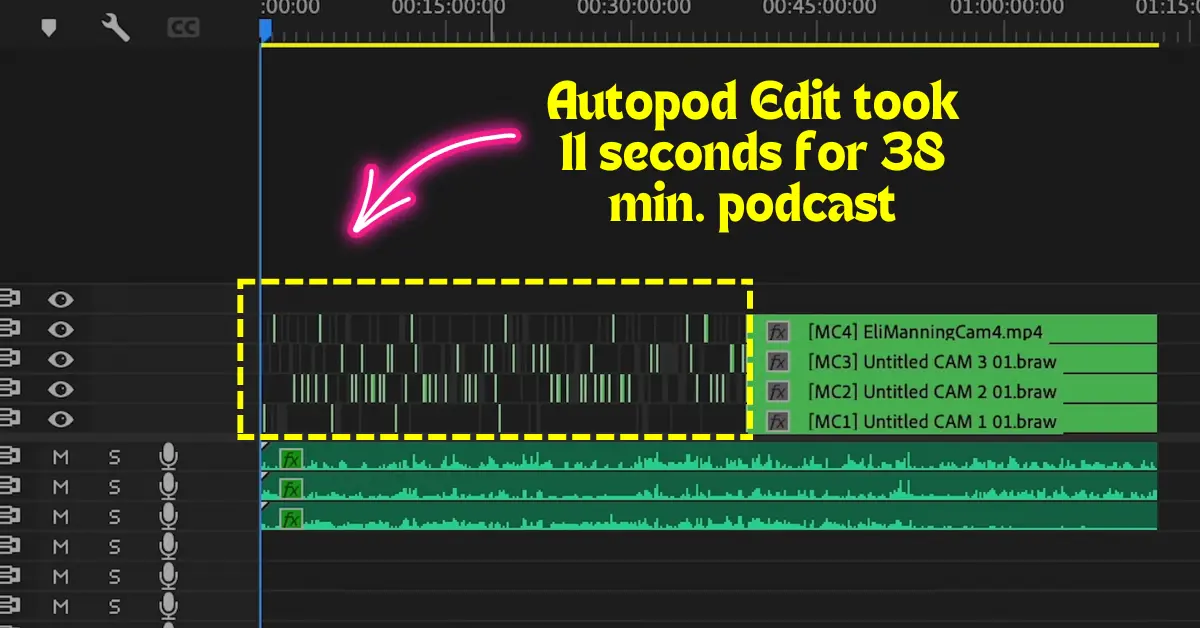
- Click Create Multi-Cam Edit. AutoPod builds the camera cuts on your timeline.
- Review the edit, adjust any cut, then create social clips with the Social Clip Creator.
Price: $29/month per license, 30-day free trial on the monthly plan (1 month free per year on annual billing). Needs Premiere Pro 2023 or newer. Full setup: how to use AutoPod in Premiere Pro · AutoPod download · start the free trial.
2. AutoCut: best value all-in-one AI plugin
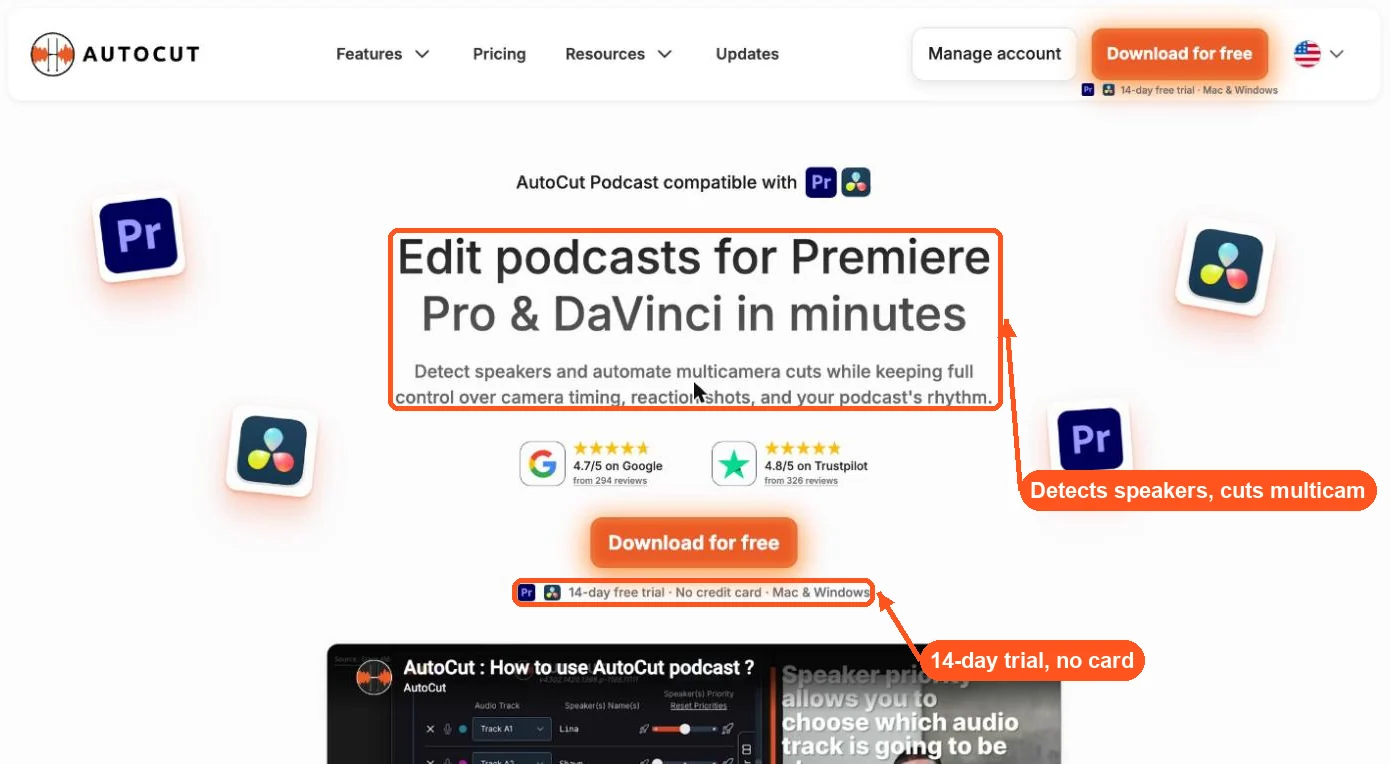
AutoCut bundles many AI tools in one Premiere Pro and DaVinci Resolve extension. AutoCut Podcast detects speakers and creates the multicam cuts, and can group your cameras into a native Premiere Multi-Camera sequence so you can switch angles in the Program Monitor afterwards. The AI Plan also includes silence removal, captions, auto zooms, shorts (AutoViral), B-roll and chapters.
3. FireCut: AI editing suite alternative
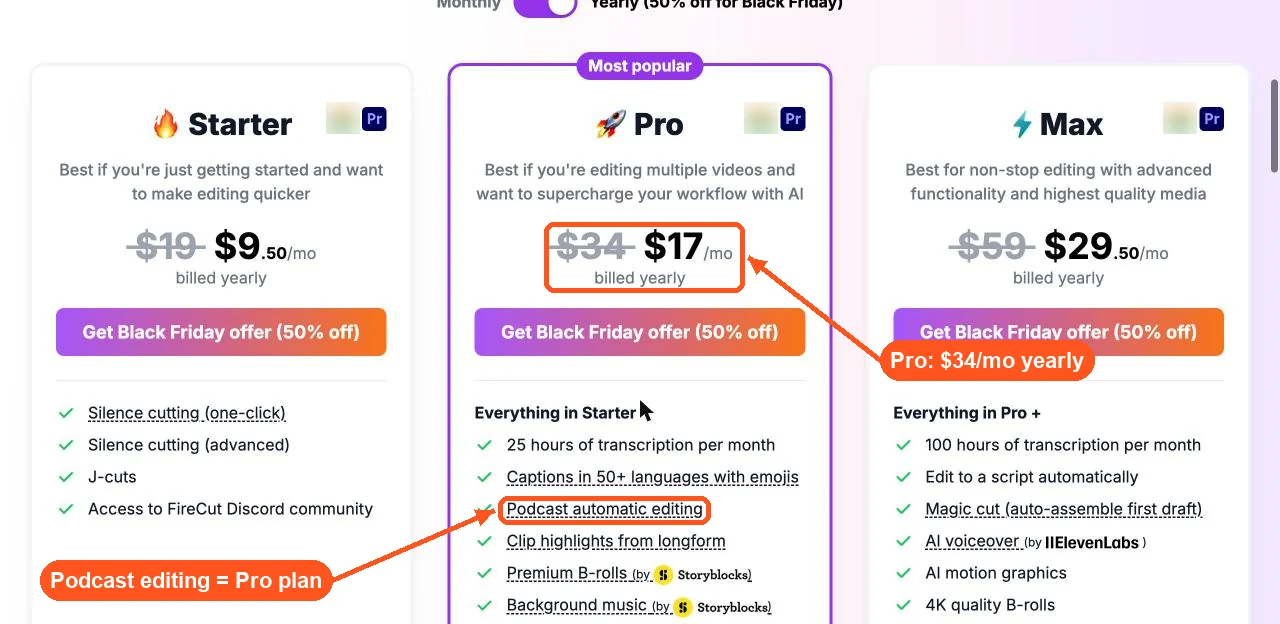
FireCut is another AI plugin for Premiere Pro and DaVinci Resolve. Podcast (multi-track) automatic editing is on the Pro plan, which also adds captions, filler-word removal, zooms and chapters. There’s a 7-day free trial.
4. Premiere’s built-in Text-Based Editing (no plugin)
If your podcast is single-camera, or you only need to tighten the dialogue, Premiere can already do it from the transcript:
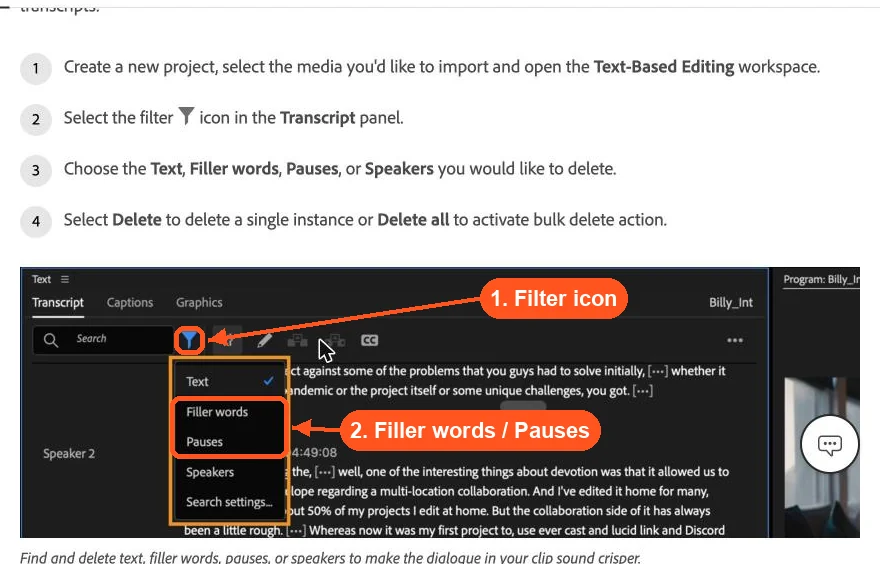
- Import your media and open the Text-Based Editing workspace; Premiere transcribes it.
- In the Transcript panel, click the filter icon.
- Choose Filler words or Pauses (you can also pick Text or Speakers).
- Click Delete for one instance or Delete all to remove them in bulk.
Limit: it doesn’t switch camera angles for you. Combine it with a multicam plugin, or switch angles manually in a Premiere multi-camera sequence.
Recommended AI podcast editing workflow
| Step | Tool | Time for a 1-hour, 3-camera episode |
|---|---|---|
| 1. Sync cameras and mics | Premiere (Synchronize / multicam source sequence) | 5 min |
| 2. Automatic camera switching | AutoPod Multi-Camera Editor or AutoCut Podcast | A few minutes |
| 3. Remove pauses and filler words | Text-Based Editing, AutoCut or FireCut | 5–10 min |
| 4. Review, add graphics and music | Premiere | 20–40 min |
| 5. Create 3–5 social clips | AutoPod Social Clip Creator or AutoCut AutoViral | 10 min |
| 6. Export | Premiere / Media Encoder | Render time |
Recording tip: all of these tools work best with a separate microphone and audio track for every speaker. Record each mic to its own track (or file), and keep cameras rolling continuously so syncing is one click.
Pricing at a glance
| Tool | Monthly | Billed yearly | Free trial |
|---|---|---|---|
| AutoPod | $29/month per license | 1 month free per year | 30 days (monthly plan) |
| AutoCut Basic (silences only) | $9.90/month | $6.60/month | 14 days |
| AutoCut AI Plan | $19.80/month | $14.90/month | 14 days, no card |
| FireCut Pro | See FireCut site | $34/month | 7 days |
| Premiere Text-Based Editing | Included with Premiere | Included | 7-day Premiere trial |
Detailed comparison: AutoPod vs AutoCut vs FireCut · AutoPod pricing.
Which AI podcast editor should you choose?
- You edit a 2–4 camera podcast every week: AutoPod.
- You also make lots of shorts and need captions and zooms: AutoCut AI Plan.
- You want transcript-based editing features and AI extras: FireCut.
- Single camera, just need tighter dialogue: Premiere’s Text-Based Editing.
- You edit in DaVinci Resolve: all three plugins have Resolve versions; see AutoPod for DaVinci Resolve.
FAQ
What is the best AI podcast editor for Premiere Pro?
AutoPod is the best fit for multicam video podcasts because it switches cameras automatically based on who is speaking (up to 10 cameras and 10 mics). AutoCut is the best value if you also want captions, zooms and shorts, and Premiere’s built-in Text-Based Editing is enough for removing pauses and filler words.
Can Premiere Pro edit a podcast automatically?
Partly. Premiere’s Text-Based Editing can detect and bulk-delete pauses and filler words from the transcript. For automatic camera switching between speakers you need a plugin such as AutoPod, AutoCut Podcast or FireCut.
Is there a free AI podcast editor for Premiere Pro?
Premiere’s own Text-Based Editing (pauses and filler-word removal) is included with Premiere. AutoPod has a 30-day free trial and AutoCut a 14-day free trial with no credit card, but neither is free long term.
How do I auto cut a podcast in Premiere Pro?
Sync your cameras and give each speaker their own audio track, then run a multicam plugin: in AutoPod, name each audio track, tag who is in each camera and click Create Multi-Cam Edit. Finally remove pauses with a jump cut tool or Premiere’s Text-Based Editing.
Does AutoPod work in DaVinci Resolve too?
Yes. AutoPod, AutoCut and FireCut all have DaVinci Resolve versions. AutoPod works with all versions of Resolve Studio, and the free Resolve only up to 19.0.3.
Do AI podcast editors work with one microphone?
Automatic camera switching needs a separate audio track for each speaker, because the plugin decides who is talking from the audio levels. With one mic, use silence removal and edit camera angles manually.
Final thoughts
AI won’t replace your final creative pass, but it removes the slowest parts of podcast editing: camera switching, silence trimming and clip making. Start with Premiere’s free Text-Based Editing for dialogue, and add AutoPod if you edit multicam shows. Try it free for 30 days: AutoPod download or start the trial.

Sonu is a passionate blogger who reviews the latest AI tools. With a focus on providing insightful and unbiased reviews, Sonu helps readers navigate the evolving world of artificial intelligence.