You can cancel your AutoPod subscription through its Lemon Squeezy billing portal. If you’re using a free trial or a paid subscription, sign in with the email address associated with your AutoPod account, open your subscription options, and confirm the cancellation.
Below, I’ll walk you through each step.
How to Cancel Your AutoPod Subscription?
Before you begin, make sure you can access the email address you used when signing up for AutoPod. You’ll need it to receive a secure sign-in link.
Step 1: Open the AutoPod Billing Portal
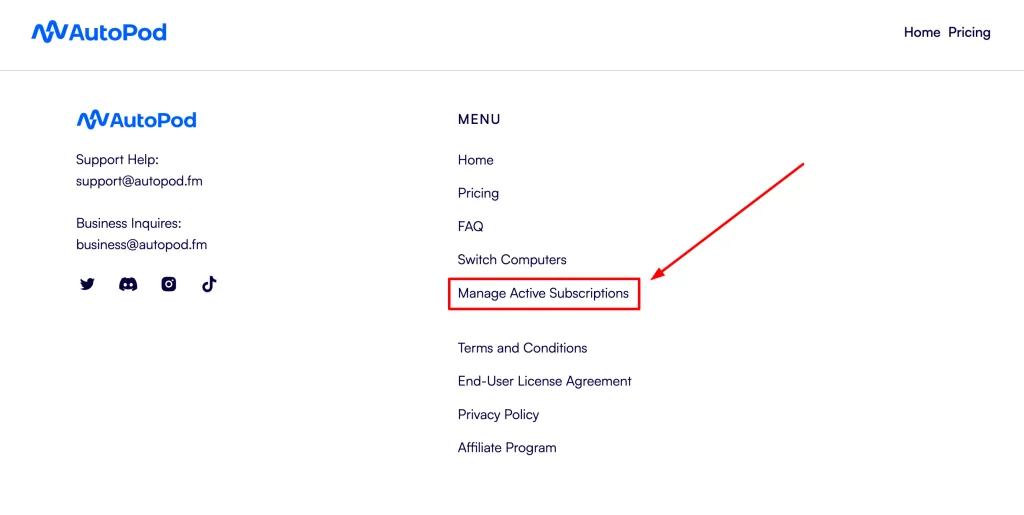
Go to AutoPod.fm, scroll to the bottom of the homepage, and click Manage Active Subscriptions.
You can also open the AutoPod billing portal directly to skip this step.
[Screenshot 1: Show the “Manage Active Subscriptions” link at the bottom of the AutoPod homepage.]
Step 2: Enter Your Subscription Email Address
On the sign-in page, enter the email address associated with your AutoPod subscription.
The page explains that a secure sign-in link will be sent to your email address. Submit your email to request the link.
Use the same address you used for your free trial or paid subscription so you can find the correct account.
Step 3: Open the Sign-In Link in Your Email
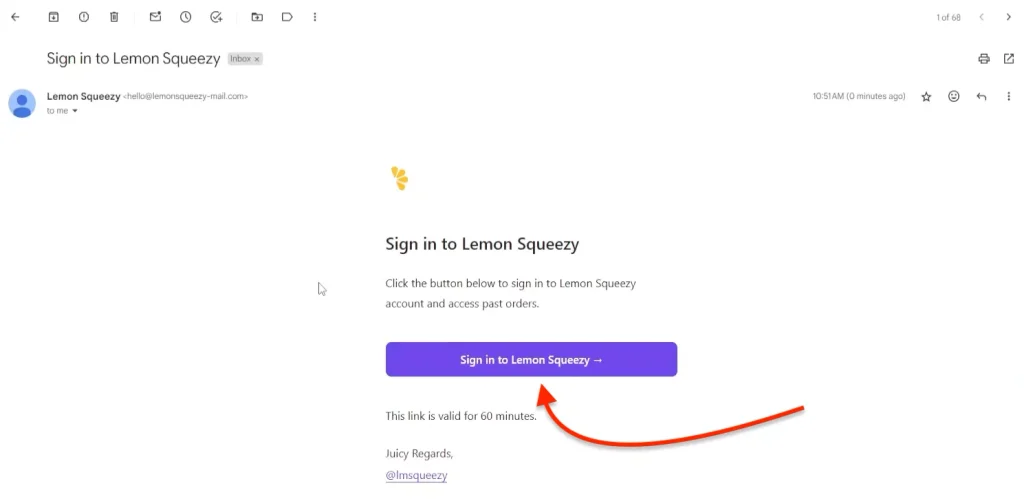
Open your inbox and look for the sign-in email from Lemon Squeezy. Click the link in that email to access your subscription and billing settings.
If the email doesn’t arrive, check your spam or junk folder and confirm that you entered the correct address.
Step 4: Find Your Active AutoPod Subscription
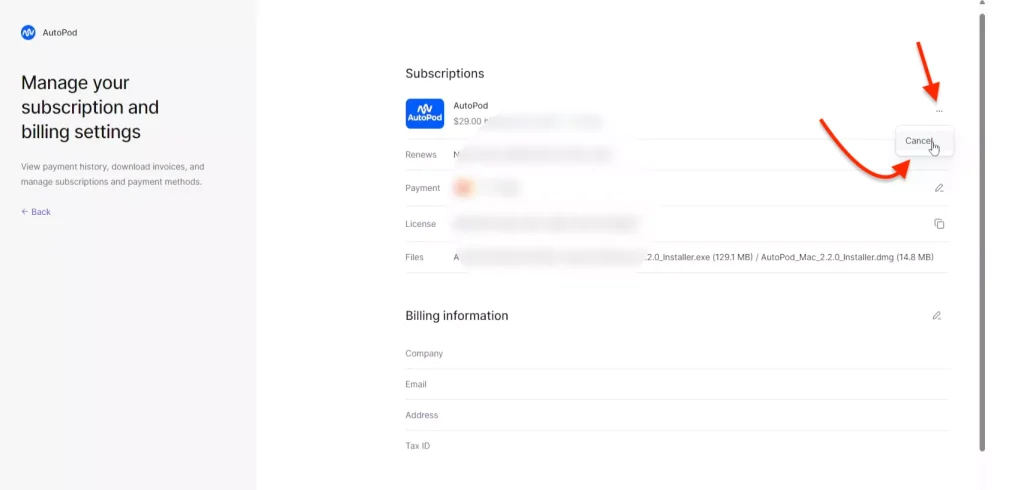
After signing in, look for the section titled Manage your subscription and billing settings.
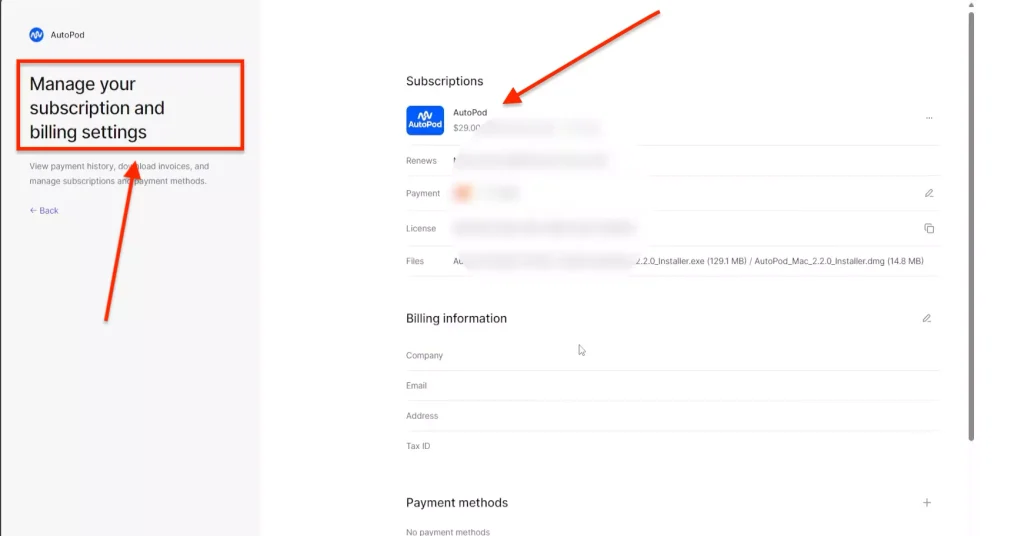
Find the AutoPod subscription you want to cancel. If multiple subscriptions appear, check the plan details before proceeding.
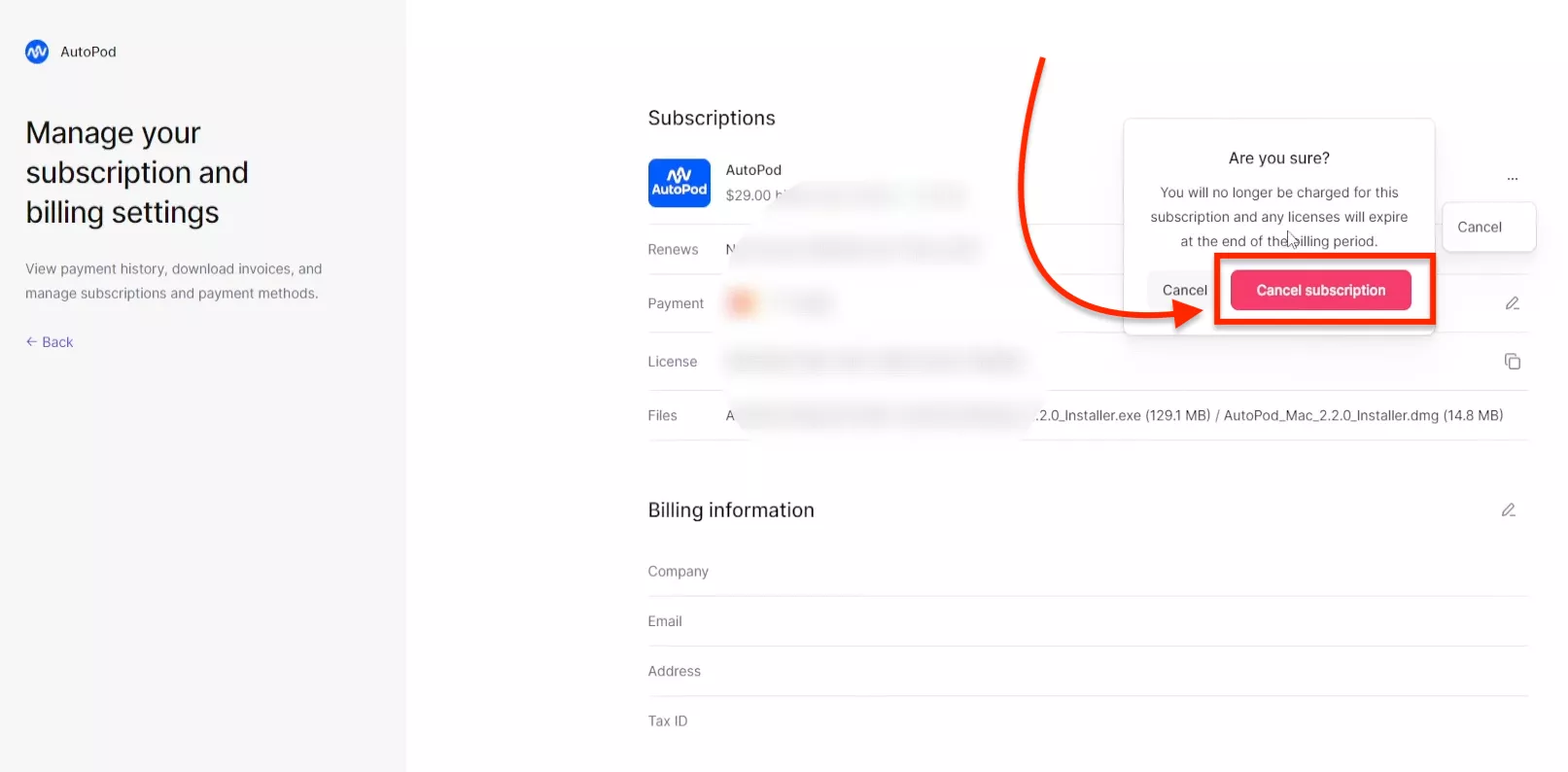
Click the three-dot menu beside the subscription, then select Cancel.
Step 5: Confirm the Cancellation
A confirmation popup will appear asking whether you want to cancel.
Read the message, including any details about when your subscription or access will end. Then click Cancel Subscription to finish.
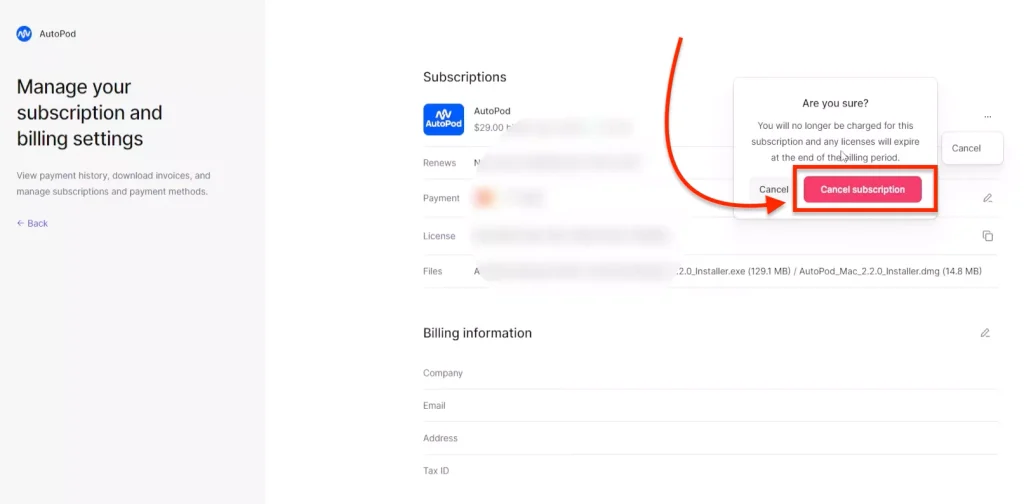
Opening the popup alone does not complete the cancellation, you need to click the final confirmation button.
Step 6: Check That the Cancellation Was Recorded
After confirming, check the subscription details for a cancellation status or a scheduled end date.
Save a screenshot of that confirmation for your records. If you receive a cancellation email, keep that too.
How to Cancel an AutoPod Free Trial?
If you’re still using the free trial, follow the same steps:
- Open the AutoPod billing portal.
- Enter the email address used for the trial.
- Open the secure sign-in link sent to your inbox.
- Find your AutoPod trial subscription.
- Open the three-dot menu and select Cancel.
- Click Cancel Subscription and check the resulting status.
To avoid the first subscription charge, complete the cancellation before your trial ends. Check your account for the exact trial end date, and allow time to resolve any sign-in problems.
What Happens After You Cancel?
For the paid subscription shown in the walkthrough, access remained available until the end of the period already paid for.
Check the end date displayed in your own billing portal to confirm how long you can continue using AutoPod. If you’re cancelling a trial, read the confirmation message for the trial’s access end date.
Cancellation and a refund are separate matters. If you want a refund for an existing payment, contact AutoPod support to ask about your order.
Having Trouble Cancelling AutoPod?
The Sign-In Email Hasn’t Arrived
Check your spam or junk folder first. Confirm that you entered the email address associated with your subscription, then request another sign-in link if needed.
Your Subscription Isn’t Showing
You may have signed in with a different email address. Search your inboxes for your original AutoPod purchase or trial confirmation, then use the address that received it.
You Can’t Find the Cancel Option
Check whether the subscription already shows a cancellation status or end date.
If you still have an active subscription but cannot find the cancellation option, contact support@autopod.fm. Include your subscription email address and a short description of the problem.
Frequently Asked Questions
Can I Cancel AutoPod Without Opening Premiere Pro?
Yes. These cancellation steps take place in a web browser through AutoPod’s billing portal. You don’t need to open Premiere Pro.
Does Uninstalling AutoPod Cancel My Subscription?
Uninstalling the plugin is not a billing cancellation. Use the billing portal and confirm that your subscription has been cancelled.
Which Email Address Should I Use?
Use the email address you entered when signing up for AutoPod. If you’re unsure, check which inbox received your original trial or purchase confirmation.
How Do I Know My AutoPod Subscription Is Cancelled?
Check the billing portal after clicking Cancel Subscription. Look for a cancellation status, confirmation message, or scheduled subscription end date. Keep a copy for your records.

Sonu is a passionate blogger who reviews the latest AI tools. With a focus on providing insightful and unbiased reviews, Sonu helps readers navigate the evolving world of artificial intelligence.