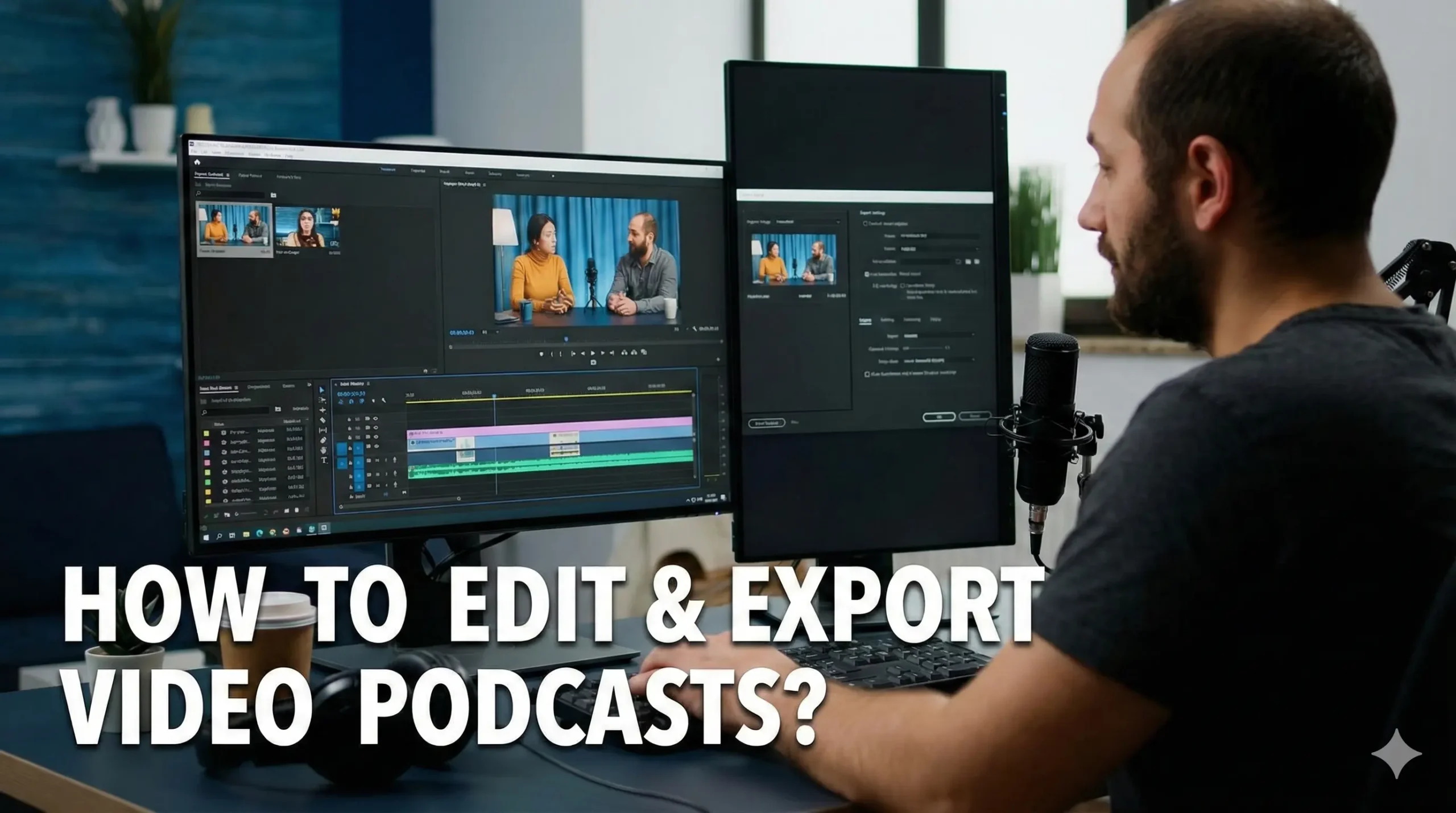
I’ll be breaking down how to edit a podcast with multiple angles, and how to create a social clip with captions so you can upload it to Instagram, TikTok, Facebook reels, or even YouTube shorts.
Stay Organized for Video Podcast Editing
Anytime you edit video, generally speaking, it’s really important to stay organized. Here you have the folder to the video podcast and I have the three different angles in the folder. We have the wide angle, my angle, and then my guest’s angle.
Once I drag them into this folder, I name them who the person is so that when I’m referencing them in editing, I could see it clearly. As far as the audio file goes I do have three files because I use a Zoom recorder to capture this conversation, and it actually does give me a master file, so I’ll be using that.
I’m going to open up Adobe Premiere Pro, which is what I’ll be using to demonstrate these principles.
I’m going to start a new project and I like putting all my files in the same folder, so I’m just gonna choose that same location on the desktop in the interview
Build the Multi-Camera Sequence in Adobe Premiere Pro
Now it’s time to drag in the files that we are going to be working with. I’m going to select the three angles that I need and then the master audio file, and I’m gonna drag that into the bin.
- Select them all, right click, and select Create Multi-Camera Source Sequence.
- This will consolidate and sync everything and put it all in one sequence. I’m just gonna entitle this Sean Interview.
- Make sure the audio’s selected, track channel one and all that stuff. Hit OK, and then Premiere’s gonna do its thing.
- It kicks out a sequence file called Sean Interview. Right click that and hit Open in Timeline.
Now I am met with all my files in one timeline and they should be synced. This is the place where you need to make any and all tweaks to the color of your video, the framing of your video, and if you even wanted to edit some of the audio in regards to some audio effects.
Prep and Tweak Your Footage for Video Podcast Editing
You could see there’s my clip, there’s Sean’s clip, and then there’s that wide clip.
I am gonna make some quick tweaks before we get to actually editing this video podcast.
- The first tweak I’m gonna make is a color tweak. I’m gonna just color correct a little bit of this. I’m gonna change my window to Color. It’s a little warm, so I’m just gonna cool this guy off till the walls look fairly white.
- Let’s go to his clip. His clip looks pretty cool as far as color goes.
- My shot is a little bit further than I’d like it to be, so I’m just going to zoom in my shot. Going to the Effect Controls and scaling it and zooming it in, frame it up. We’re just getting the foundations right.
Trim and Clean the Timeline
The first thing we’re gonna do is trim down the front end of this clip to right when I intro it.
I’m just gonna create a cut here and slice all the way through, and then I’m just going to delete all that. We can also delete these audio files just so we can have a cleaner workflow.
- Right click that same sequence and hit New Sequence From Clip.
Switch Angles With Multi-Cam in Video Podcast Editing
Enable Multi-Cam View by selecting the multi-cam icon. You can see all the various angles on the left. If you don’t see that icon, hit the plus button and make sure you add it.
- Seeing this is super helpful because now we’re gonna switch it in real time, almost like it’s a live production.
- You could see numbers on the top left. If you don’t see it, right click and add the overlays.
- Number one is this angle, number two is this angle, and number three is this angle. I’m gonna just hit 1, 2, 3.
- Start on my shot, hit the space bar, and start cutting.
- If you make a mistake, back up to right before that mistake happened and start from there. The changes you make while you’re watching it back will overlay those mistakes.
Build a Hook for Video Podcast Editing
Simply take a moment from your video podcast, be it 15, 30, or 40 seconds, and use that as the hook to your video podcast.
You can put “Coming up” at the bottom left of the screen because people know that’s what they’re about to get into.
You can also add music. Maybe if you have a logo fly in, or if you want to transition from your podcast into an ad read, you can put a whoosh effect.
Create a Social Media Clip With Captions for Video Podcast Editing
Create the Vertical Sequence
- Go File, New Sequence.
- Traditional 1080 video is 1920 by 1080. Reverse that: 1080 by 1920.
- Call this Vertical and hit OK.
Select and Place the Moment
- Go back to your edit and get a moment that stands alone by itself, and it shouldn’t be more than about a minute.
- Select it, copy, and paste it in the Vertical sequence.
- Frame the shots. Make sure that I’m either a little bit zoomed out. On the wide angle shot, if he’s talking I can just scoot it over.
Add and Style Captions
- Hit Window, Text, and then select Transcribe Sequence.
- Select Transcribe In and Out Point Only, then hit Transcribe. For the most part they do a pretty good job.
- Hit Create Captions. I like the single line, then hit Create.
- Double click on the caption to edit. I like having all caps on the caption. I like putting it generally in the center of the frame. As far as the font goes, I like using Helvetica Bold.
- Create this as a Style so it’s affecting all the rest of the captions.
Export the Vertical Clip
- Go to Export, High Quality 1080.
- Make sure you Match Source. If you don’t do that, it’s gonna give you the black bars.
- Under Captions, make sure you burn in your captions.
- Set your destination folder and export.
Export Audio and Video for the Full Episode
If you’re at this point you’re kind of ready to export both the video and the audio.
Mark Your Range
- Mark the In and Out point of your conversation. Hit I at the start and O at the end.
Export the Audio
- Head over to the Export tab and export the audio file itself.
- Change the file format to MP3.
- Change the destination to make sure it goes into that folder.
- Title it Sean Interview Audio and export that file.
Now you have the audio file ready to upload.
Export the Video
- Go back to export the video podcast.
- Select High Quality 4K and export that file.
Final Thoughts
These are the basics you need to know for video podcast editing: organize your media, build and prep a multi-cam sequence, switch angles in real time, craft a short hook, create a vertical social clip with captions, and export both audio and video.
Follow these steps and you’ll have a clean full-length episode plus a captioned clip ready for social.

Sonu is a passionate blogger who reviews the latest AI tools. With a focus on providing insightful and unbiased reviews, Sonu helps readers navigate the evolving world of artificial intelligence.
Leave a Reply