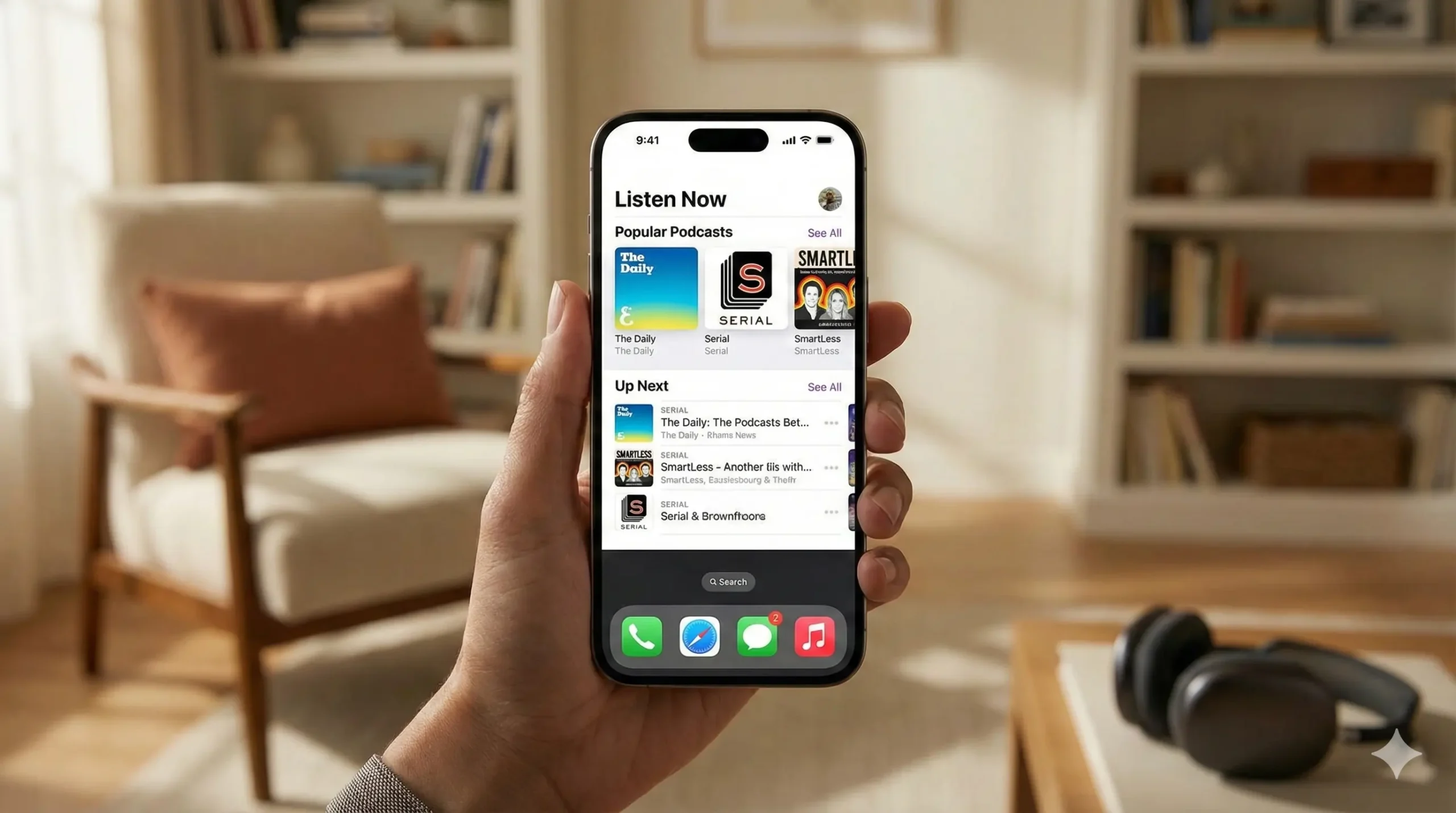
- Start by opening the Apple Podcasts app.
- It’s pre-installed on all iPhones, so you don’t need to download anything extra.
Discover Shows in Apple Podcasts on iPhone
Once you’re in the app, tap the browse tab to see featured and popular shows. This is a good place to discover new podcasts across a variety of topics.
Search in Apple Podcasts on iPhone
If you already know what you’re looking for, head to the search tab. You can type in the name of a podcast, a topic you’re interested in, or even the name of a creator.
View Episodes and Descriptions in Apple Podcasts on iPhone
When you tap on a podcast, you’ll see its list of episodes along with a short description.
Follow and Library Updates in Apple Podcasts on iPhone
To stay updated, tap the plus icon to follow the podcast. This way, new episodes will automatically show up in your library.
Download for Offline Listening in Apple Podcasts on iPhone
If you want to listen offline, tap the download icon next to any episode. That saves it to your phone so you can listen without needing an internet connection.
Create Stations and Playlists in Apple Podcasts on iPhone
For easier access to your favorite shows, you can create a custom station or playlist within the app. This lets you group multiple podcasts in one place and control the order they play.
Use Siri with Apple Podcasts on iPhone
And if you prefer hands-free control, you can also use Siri. Just say something like “play podcast name” and it’ll start playing right away without needing to touch your phone.
Final Thoughts
Follow podcasts to stay updated. Download episodes to listen without an internet connection. Create a custom station or playlist to group shows and control the order they play. Use Siri for hands-free control.

Sonu is a passionate blogger who reviews the latest AI tools. With a focus on providing insightful and unbiased reviews, Sonu helps readers navigate the evolving world of artificial intelligence.
Leave a Reply