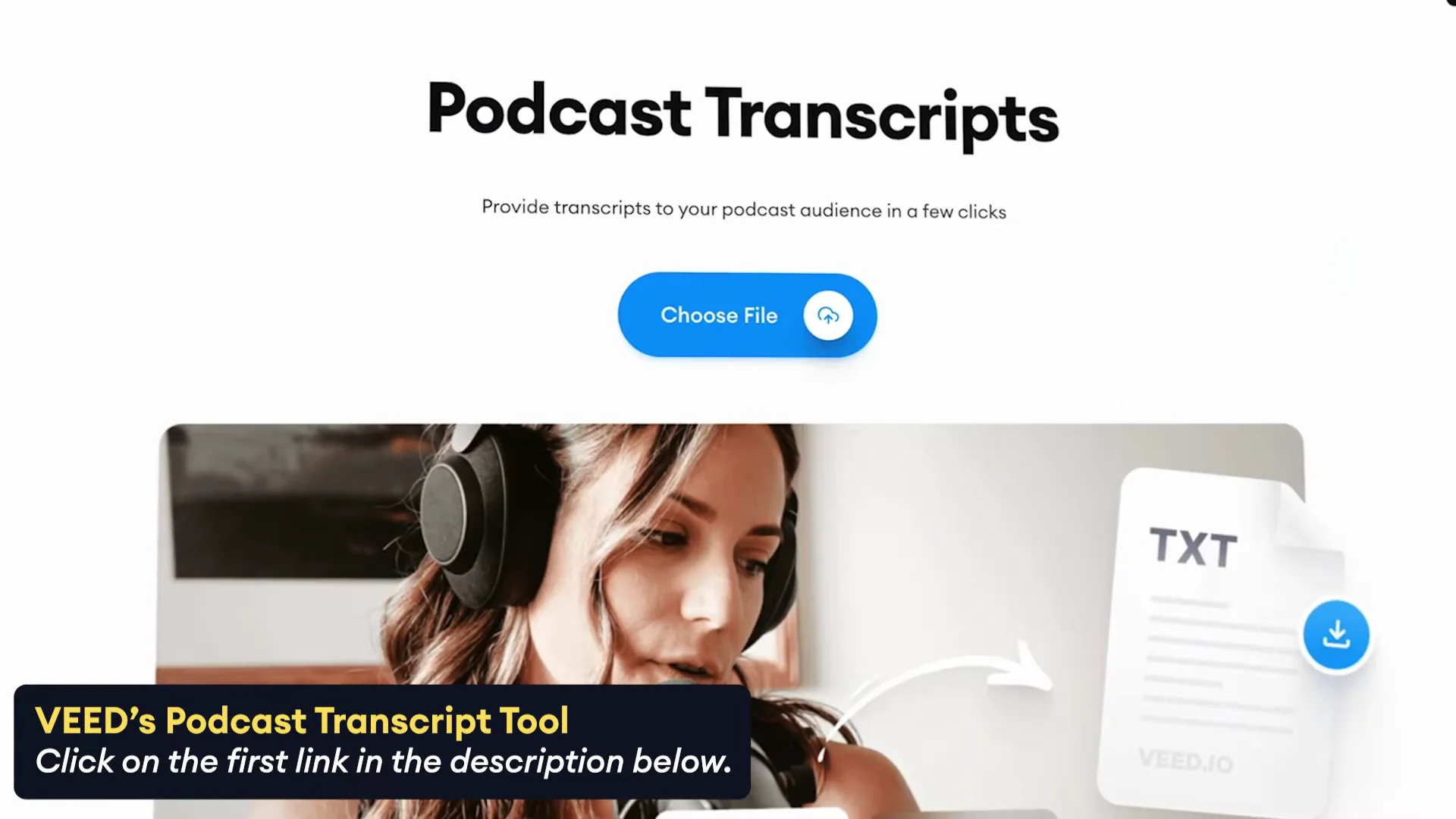
If you’re asking “What is the best tool to transcribe my podcast?”, the honest answer depends on what you value most: speed, accuracy, ease of use, or how little effort it takes on your end.
As a podcaster, you don’t want to spend hours cleaning up transcripts or learning complicated software. You just want something that works, gives reliable results, and lets you move on to the next episode.
Turn podcast episodes into text in just a few seconds. I’m going to show you how you can automatically convert audio of your podcast into a text file in just a few clicks. To convert the audio of the podcast into text, we’re going to be using VEED’s podcast transcription tool. It’s very straightforward.
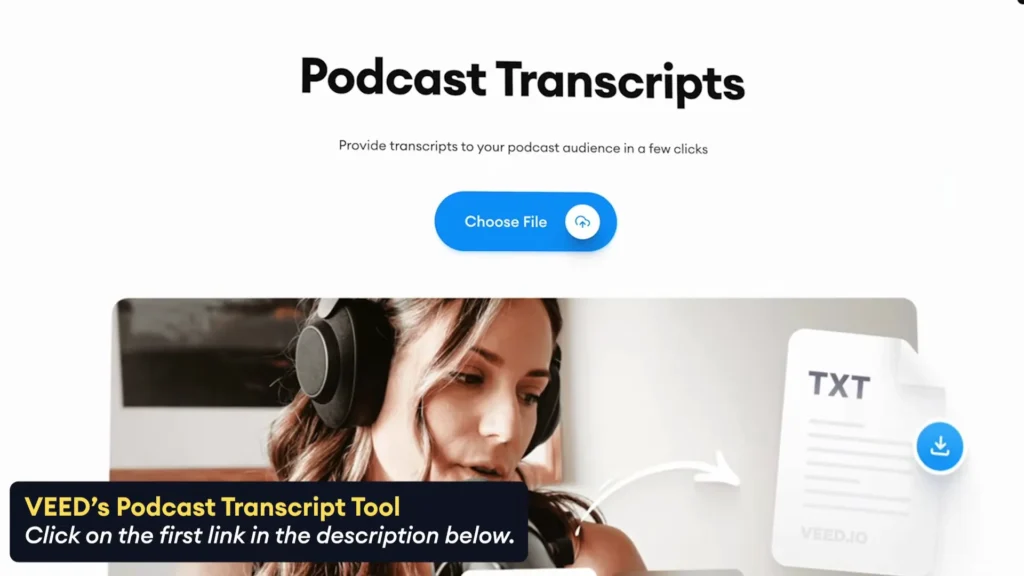
How to Transcribe Podcast using Veed.io?
Step 1: Transcribe Podcast to Text: Upload and Transcribe
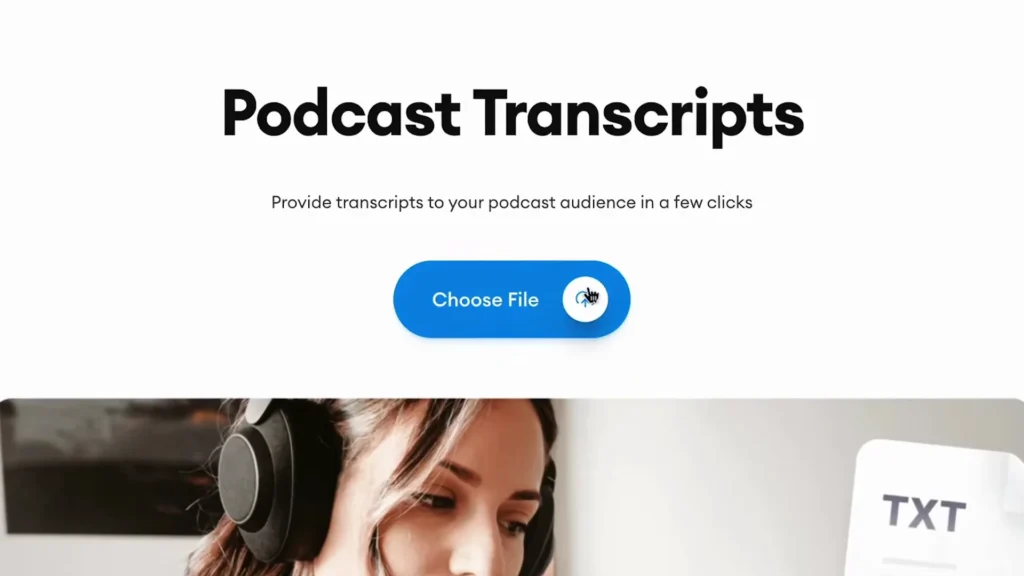
Go to the https://www.veed.io/tools/transcription/podcast-transcripts , open the transcription tool and start uploading the podcast video or audio file you would like to turn into text.
What’s great is that VEED can automatically transcribe our podcast so we don’t have to type it out manually.
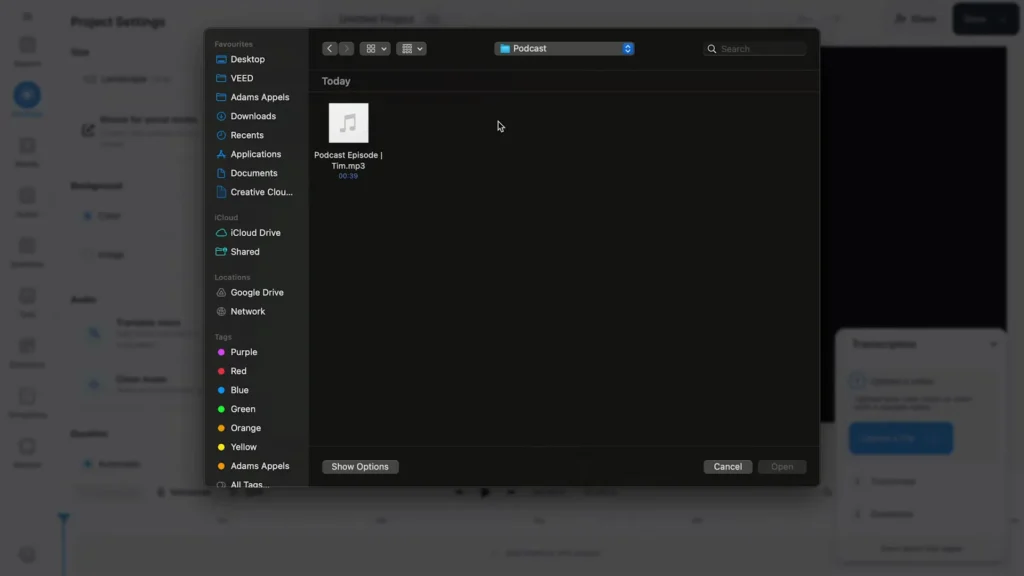
After uploading, choose the language spoken in the podcast and click on the Create Subtitles button to start transcribing.
Sit back, relax, and wait until it’s done. After a moment, you’ll have a full transcript ready of your podcast.

Step 2: Customize and Download
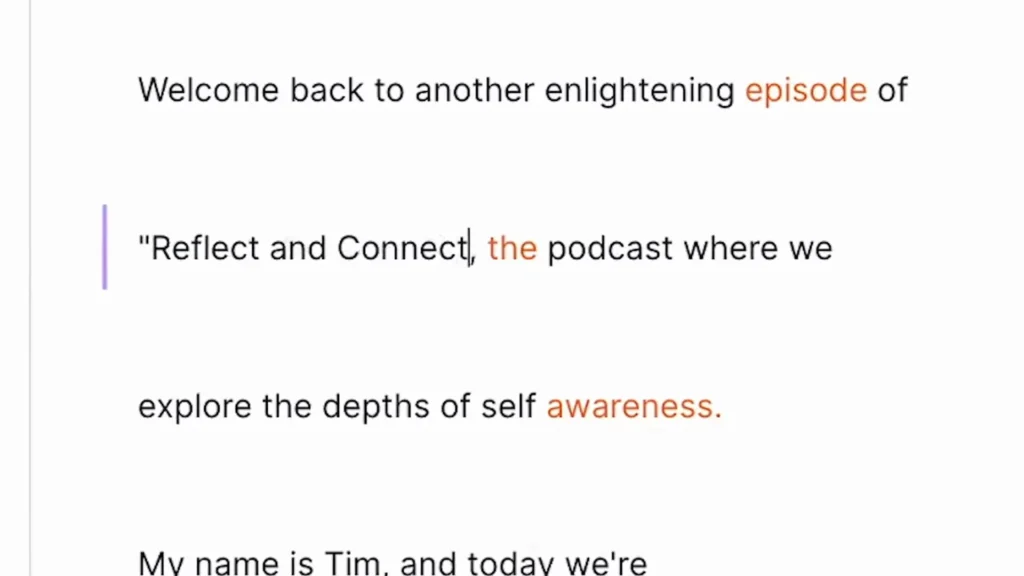
The menu in VEED’s editor allows you to fully customize the text in any way you prefer.
If you’re ready to download your podcast transcript, click on Options in the Subtitles menu and head over to Download.
Or, if you came through the landing page from earlier, click on the Download button in the bottom right corner and choose the format you would like to download your text as.
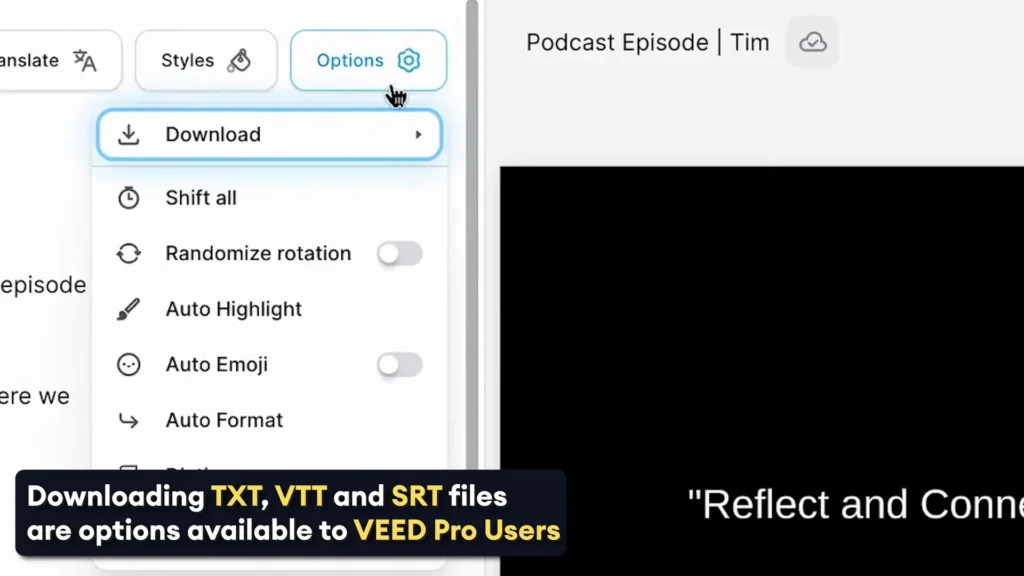
Step 3: Choose Your Format
In this case, we only want to have text, so we’re going to choose the TXT file, but an SRT or VTT file could be super helpful if you want to use your transcript as synced subtitles.
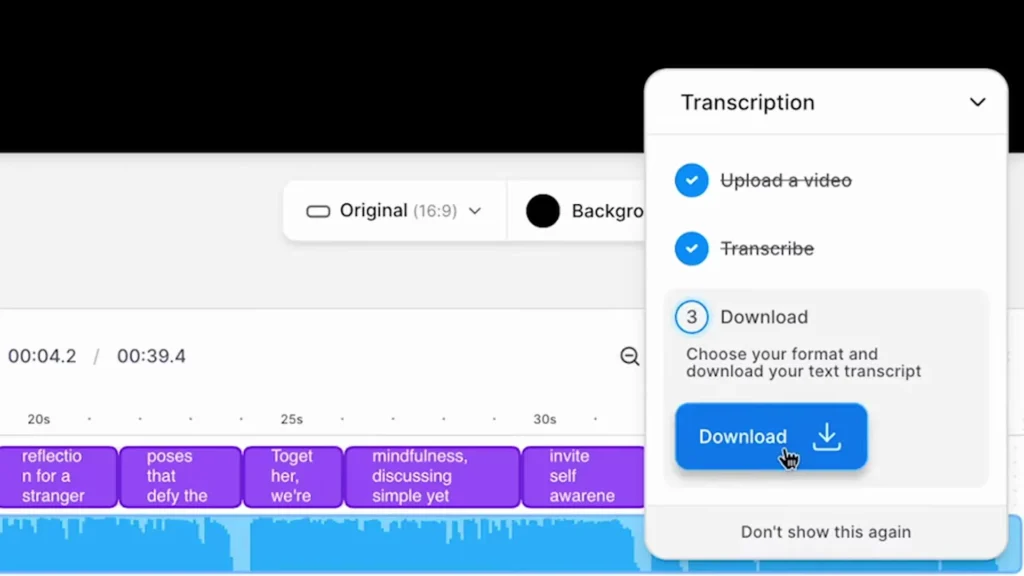
This could come in handy if you uploaded your podcast as a video or audiogram on YouTube so you could upload your SRT or VTT file as closed captions for everyone to read.

Step 4: Download and Open
For now, the TXT file will do, so we’re going to keep it checked and click on the Download button to download it to our device.
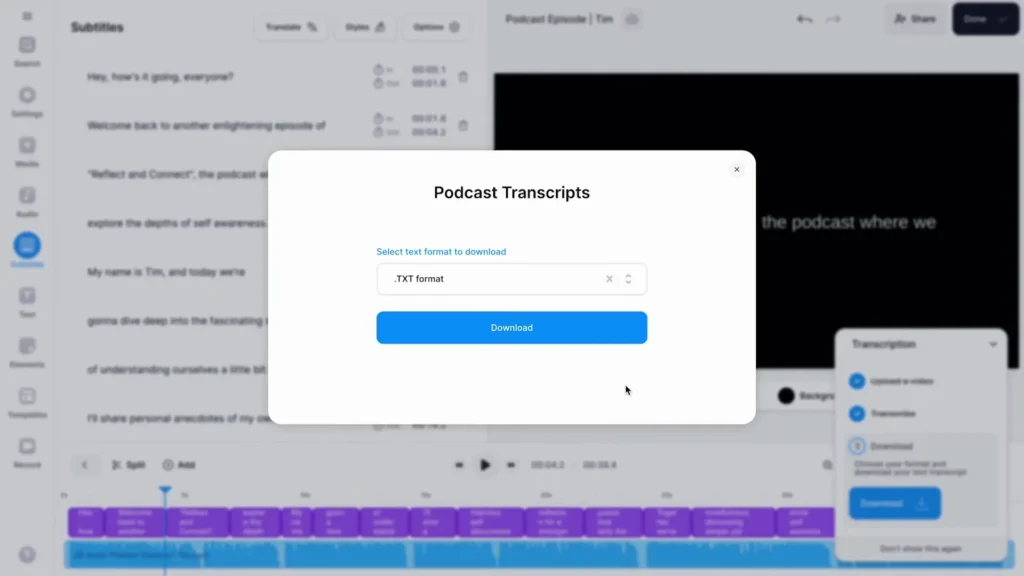
When I check my Downloads folder, I can find and open the TXT file with my transcribed podcast audio that we created in just a few minutes.

Final Thoughts
Upload your podcast file, select the language, let VEED transcribe it, customize the text if you want, and download the result as TXT for plain text or SRT/VTT for captions. That’s how you transcribe your podcast.

Sonu is a passionate blogger who reviews the latest AI tools. With a focus on providing insightful and unbiased reviews, Sonu helps readers navigate the evolving world of artificial intelligence.
Leave a Reply